Maintain test cases and requirements in the browser
The web interface provides the test library and requirements management for everyday test preparation. You can edit structures and content, maintain variants and quick test cases, link requirements and carry out reviews. You need the appropriate project role and write permission on the affected objects.
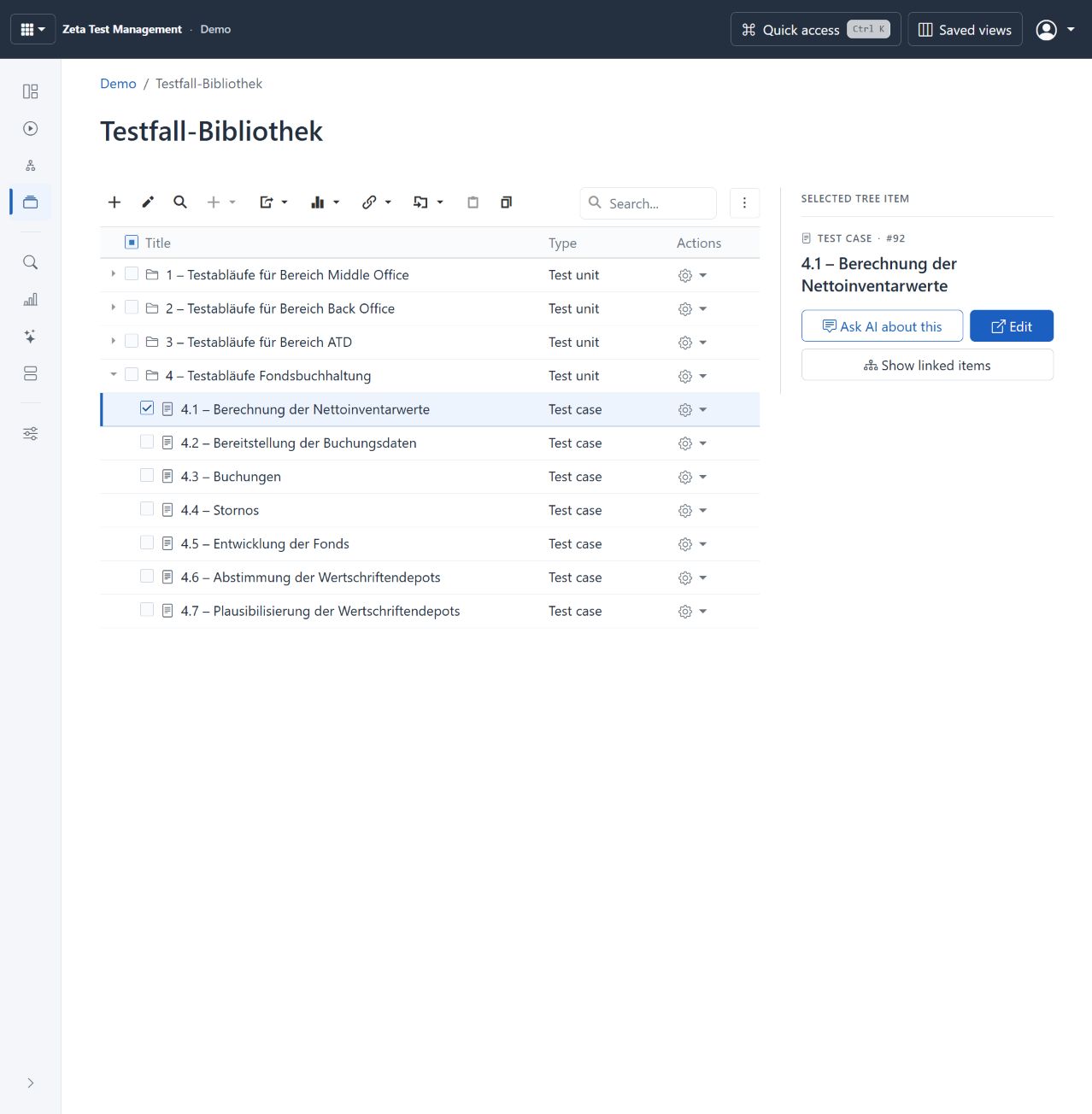
Test library from the live demo. The inspector shows actions for the selected case; Edit opens the editor. Configurable project terms and case content remain partly German. Select image to enlarge.
Create a test case
- Open the project's test library and select the target unit. Create a test unit first if needed.
- Create a test case. Enter a clear name, prerequisites, steps and expected results.
- Maintain the required attributes and attachments. Add variants when similar cases differ only in specific details; use quick test cases for the compact checklists intended for that purpose.
- Save, then reopen the case. Check the saved content and its position in the tree.
- Link the relevant requirements and arrange a review if needed. To execute it, add the case to a test plan.
The detail editor groups information into sections. Use section navigation to move between descriptions, attributes, attachments and permissions. Copy, cut, paste and move actions help restructure content; check the selection and target before a bulk operation.
For quick test cases, defect links in a run belong to the result of the whole case. The multiple-defect option is not required for the first link; it permits additional links. Reports can include quick rows when the selected template uses the quick-results table.
Capture requirements or import them from Word
- Open requirements and select the target folder. Create a document with chapters or start a Word import for a DOC/DOCX file.
- Review the structure preview and select the required chapters. Check the target, prefix/suffix and treatment of existing chapters before importing.
- Edit descriptions, attributes and attachments. Set object permissions and the review status where needed.
- Link existing test cases to chapters or generate cases from a selected document or chapter. Choose the destination in the test library and decide whether to retain the requirement structure.
- Open the linked items and check that the relationship covers the intended requirement.
Importing a document does not approve its content or prove test coverage. For content review, you can additionally use AI requirement and test-case review.
Revise existing content
Use search and subtree search to identify affected items. Check dependencies, linked requirements and reviews before editing or deleting. Library edits do not automatically update cases already included in plans: synchronise the relevant plans deliberately and check the changes.
For the underlying concepts, see test cases, test variants and data exchange. Existing Windows dialog instructions remain applicable to the Windows application.