Project chat and quality intelligence
Project AI chat answers questions using only project context visible to the signed-in user. It is not unrestricted access to project data: roles, object permissions, scenario approval, and data zones are evaluated on the server.
Where a question can be answered structurally, responses include current evidence and references. Review them before accepting a conclusion or confirming a proposed domain action.
Use project chat
- Open project AI chat and create a personal chat, or continue an existing one.
- State the decision, time range, affected objects, and expected outcome as precisely as possible.
- Review sources, evidence, confidence, data quality, and stated limitations.
- Ask a narrower follow-up question where needed. You can cancel a response and continue the chat after reloading the page.
- Search, rename, pin, or delete your personal chats as required.
No visible finding is not the same as proof that no problem exists. Pay particular attention to “not assessable”, missing-data, and incomplete-visibility notices.
Turn a question into a checked answer
For example, ask about failed tests in a specific plan or requirements without sufficient coverage. Open the referenced objects and compare the answer with their current state. Refine the question if the answer uses a different period, status or object scope than intended. A saved Quality Lens is suitable for a recurring, validated structured question.
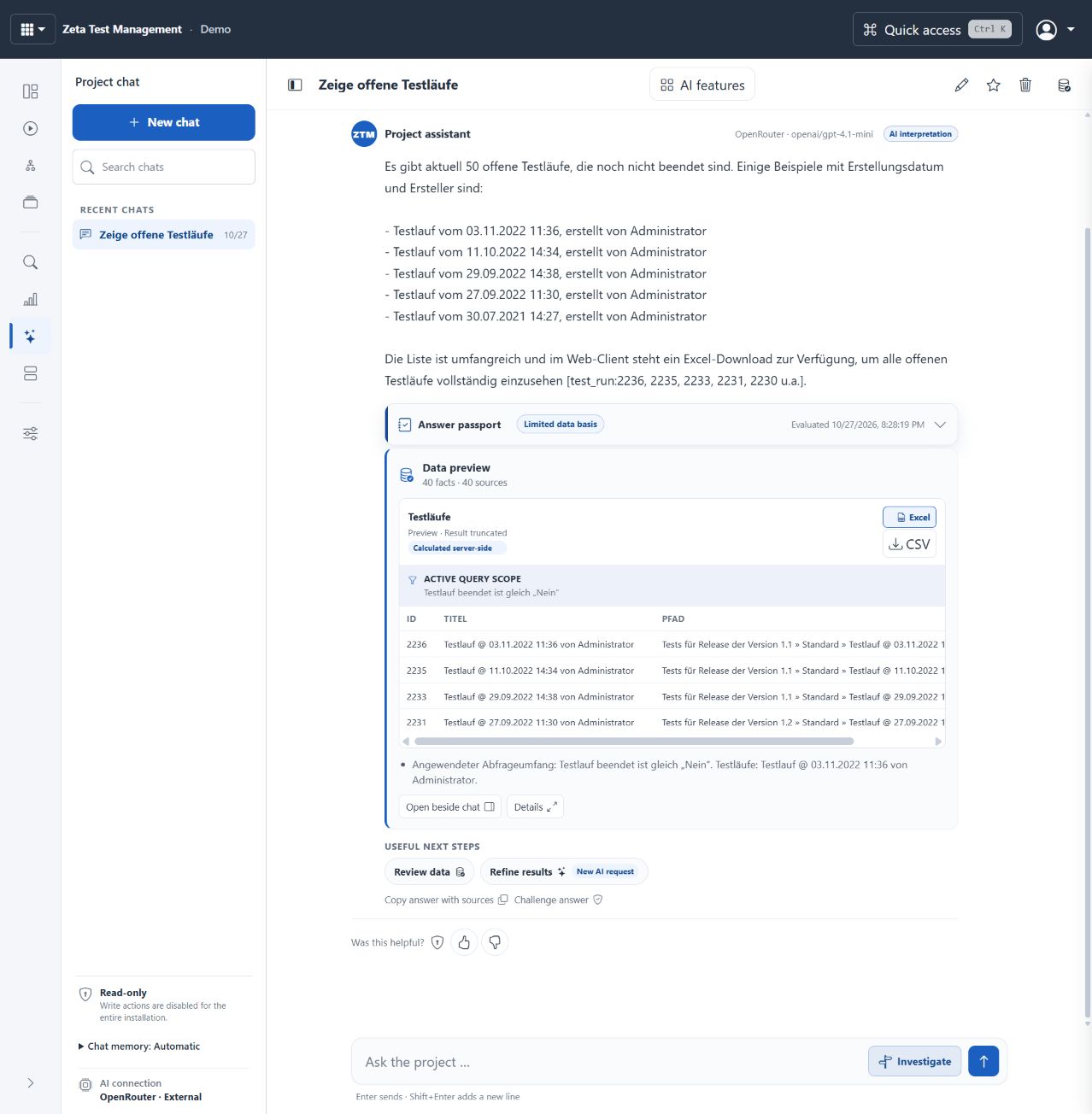
Previously saved demo response with answer passport and data preview; no new AI response was generated for this image. The saved answer and project data are German. Write actions are disabled in this demo view. Select image to enlarge.
Review requirements and test cases
Requirement review and test-case review or design produce structured findings about quality, risk, coverage, and possible gaps. A finding records category, severity, evidence, and confidence. Accepting, rejecting, or commenting on review feedback improves traceability but does not silently rewrite the requirement or test case.
Apply suggestions only after domain review. If the UI offers a concrete project change, the safe preview and confirmation lifecycle applies as an additional gate.
Apply reviewed test-case proposals
- Open the relevant test unit for AI test design or select requirement chapters for AI case generation.
- Run the analysis and review candidates for prerequisites, clear steps, expected results and domain coverage.
- Edit or reject unsuitable proposals. Select only the required candidates and the intended target unit.
- Review the offered preview and confirm the operation.
- Open the resulting library cases and verify content and placement before planning their execution.
Use quality intelligence with evidence
Advanced workflows include Quality Lenses, investigations, cross-run failure clusters, release-risk analysis, counterfactual simulations, Blind-Spot Radar, Answer Challenge, Quality Flight Recorder, project glossary, and role-specific briefings or question packs.
- Save a Quality Lens only from a validated structured project query.
- Compare results against the appropriate versioned baseline and visibility scope.
- Review drivers, thresholds, data quality, limitations, and the suggested next check together.
- Do not reuse role-specific output beyond the permissions from which it was generated.