Logging
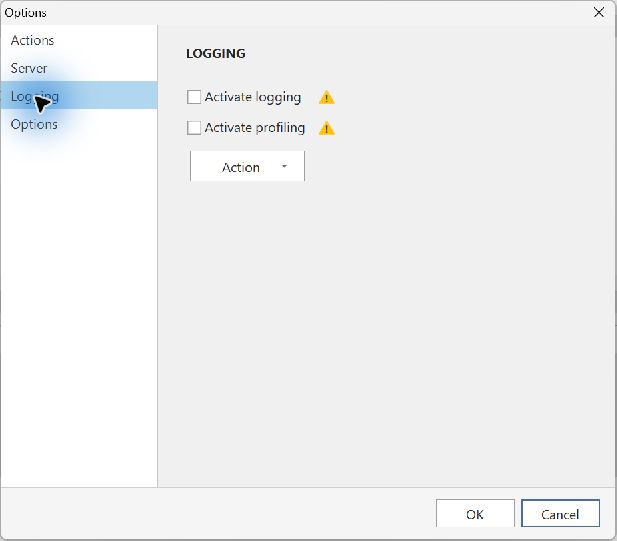
Logging records diagnostic information in rotating log files. Enable it when investigating an error; disable it after recording the problem. Logging and profiling can slow the application and use additional disk space.
Enable logging
- In the Windows application, open Manage → Options.
- Select Logging and enable application logging.
- Close the options dialog and restart the application when prompted.
- Reproduce the problem and record the steps that led to it.
Inspect or send files
Return to the logging page. Use its action menu to open the log folder and inspect the files in a text editor, or select the command to send files.
In the information-sending dialog, enter your email address and describe how to reproduce the error. Selecting Send transmits the diagnostic files to support. You can also open or delete the files through the logging page's action menu.
Connection to localhost failed
If an embedded view in the Windows client reports a connection error for localhost, see Local preview – connection error for a configuration test using 127.0.0.1.