Report, import and export in the browser
The web interface provides dashboards, charts, result lists and reports, plus import and export of project content. First choose the area and object scope: a filtered result list, one plan and the entire library represent different subsets.
Evaluate progress and results
- Open performed tests and select the relevant folder, plan or run.
- Review the dashboard, charts and result lists. Check active filters, the runs being considered and their state.
- Open unusual results to inspect status, remarks, attachments and linked defects.
- Export the required list as CSV or XLSX, then check the downloaded scope and columns.
Aggregated status colours and individual run results answer different questions. For release decisions, also check which runs are complete and which evidence is missing.
View or output a report
- Open reports or the report action on the relevant object.
- Select a standard or project report available for that context.
- Set the offered parameters and generate a preview.
- Check the project, object scope and content. Print or export through the web viewer.
Not every report applies to every object type. Available reports and data also depend on roles and object permissions.
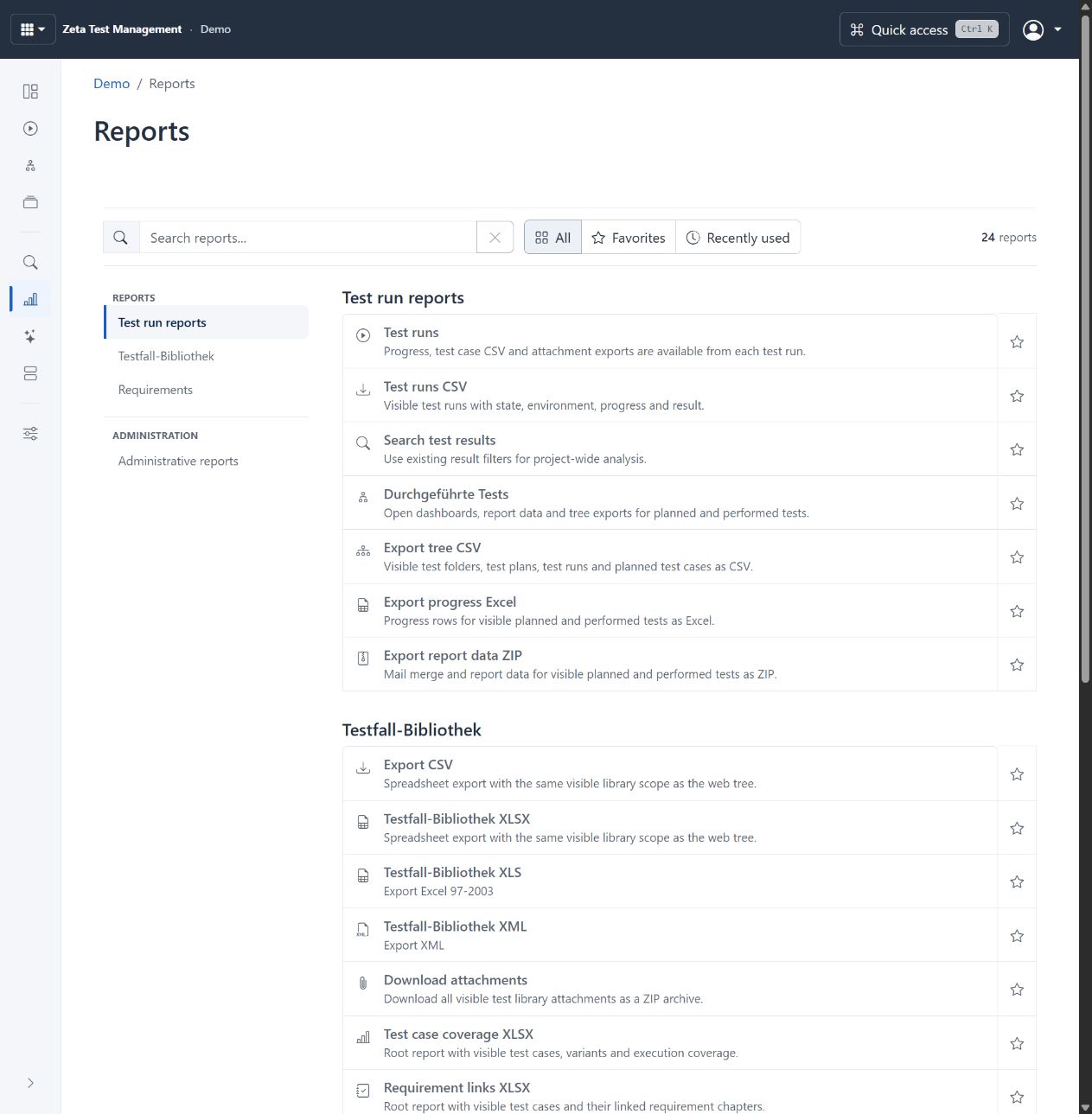
Report catalogue from the live demo, with search, categories and exports. The visual report designer is a separate workspace. Configurable project terms remain partly German. Select image to enlarge.
Design a report
With the required permission, open the report designer. Global reports are read-only; make a project copy when needed. Edit the visual layout, data queries and relations, review the data preview and save. Reopen the report and test its output in the intended object context.
The web designer supports REPX import/export and version history with restoration. Server administrators provide protected profiles for external data sources; those sources require a database account that is technically read-only. Arbitrary embedded C# scripts are not allowed, so review migration requirements for older custom reports. Open multiple reports in separate browser tabs.
Import and export test cases
- In the test library, select the import destination or export starting point.
- Choose the appropriate import: Excel/XML, another project or a configured bug tracker. Review field mapping and the import profile where applicable.
- Check the preview, selection, destination, attachments and handling of existing content before starting.
- Review imported cases, attributes, attachments and their position in the tree.
Universal library export supports CSV, XLSX, XLS and XML for the library, unit or case. Attachments can be exported as ZIP. Requirements also provide Word structure import.
Back up or transfer a project
Use backup for authorised backup, restore, copy and export operations. Before restoring, check the target, data version and existing backup. A spreadsheet export is not a complete project backup. Use the dedicated administrative preflight and execution actions to move between database types.
Store downloaded reports, project files and attachments according to their confidentiality. The application protects project access; you remain responsible for distributing exported files.